Photo Video Maker With Music
- 4.6
- Rating
- 10.00M
- Installs
- Free
- Price

 Analysis by App-foxy
I found Photo Video Maker With Music most useful when I needed to turn a small group of phone photos into something shareable without opening a full desktop editor. It is a free Android app from Litter Penguin in the video players and editors category, built around combining pictures, music, effects, frames, and animated touches in one compact workflow. The idea is simple, but the practical question is whether that simplicity holds up when you are moving between mobile networks, limited storage, and the occasional failed export.
My overall impression is positive, especially for quick personal videos rather than carefully produced films. The app has a 4.6 average from around 103 thousand ratings and has passed 10 million installs, so it is clearly familiar to a large Android audience. That popularity does not make it perfect, but it does suggest that its approachable format matches what many people want from a phone-based slideshow editor: a short path from photos to a finished clip.
How Photo Video Maker With Music fits into everyday editing
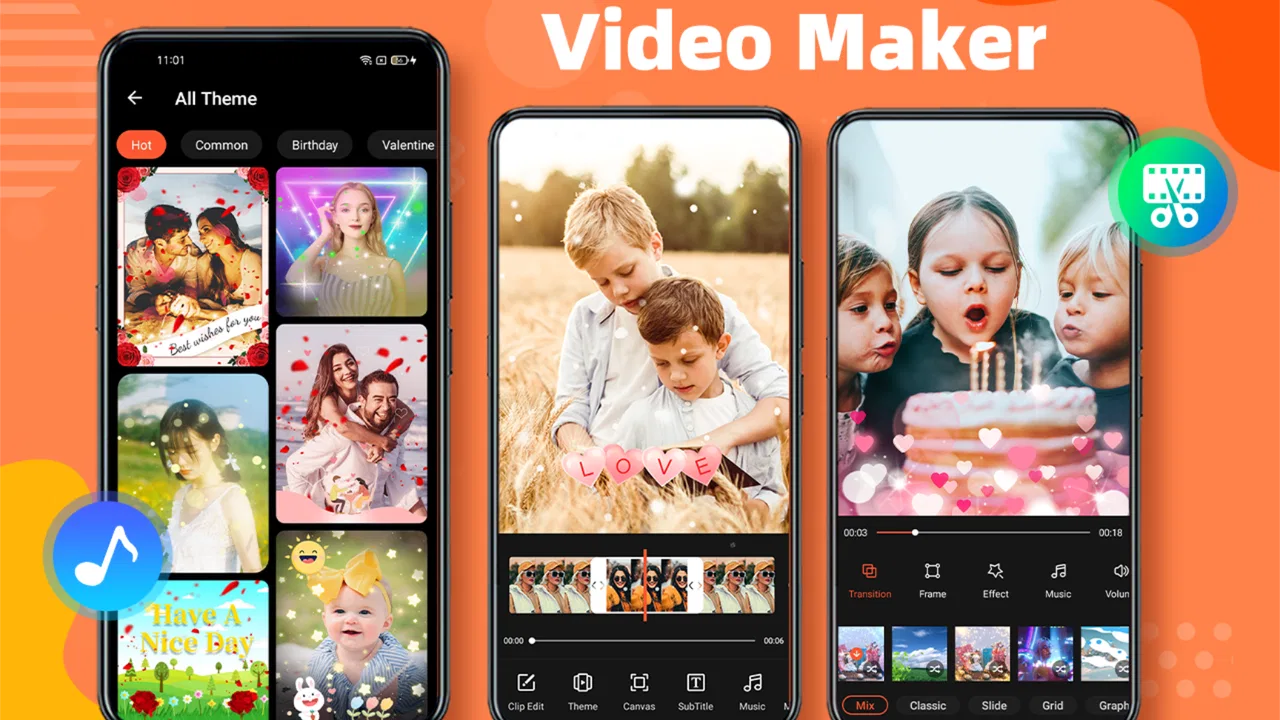
The app makes the most sense as a lightweight photo video maker. I would reach for it after a birthday, a weekend outing, a school event, or a family gathering when the material is already on my phone and I want a result that feels more polished than a plain album. Instead of arranging every element with the precision expected from a professional timeline editor, I can focus on selecting images, choosing a musical mood, and adding enough movement to keep the sequence from feeling static.
You May Also Like

 Blood Strike: 2.5 Anniversary
Blood Strike’s Loadouts Turn Every Drop Into a Tactical Gamble
A close look at Blood Strike’s custom loadouts: how fast access to signature weapons reshapes its battle royale rhythm, rewards preparation, and narrows the gap between fights.

 Pandora - Music & Podcasts
Pandora’s Music Is Easy to Start, but Harder to Recover
Pandora’s strength is its low-effort path from a seed to a station. Its weak spot is how much confidence it asks you to place in connection, setup, and quiet recovery.

 8 Ball Pool
 Is Built on Rivalries, Rematches, and Routine
A close look at the rivalries, rematches, shared routines, and unanswered safety questions that turn a quick pool match into a persistent mobile community.

 Samsung Music
’s Quiet Strength Is Playing What You Already Own
Its reach comes less from spectacle than from dependable access to a personal library. That simplicity is both the app’s strongest retention engine and its ceiling.

 AccuWeather: Weather Radar
AccuWeather Review: A Quick, Clear Forecast for Everyday Decisions
For everyday plans, the best forecast is the one you can understand quickly. AccuWeather makes rain timing, radar, and local conditions easy to act on, with a few trade-offs.

 Hill Climb Racing
Why Hill Climb Racing Still Turns Crashes Into One More Run
A tiny car, a bumpy hill and one more upgrade: Hill Climb Racing keeps resurfacing because its simple chaos makes every near-miss feel personal.
More From Our News Desk



That focus is also its main strength. A traditional mobile video editor can offer deeper control over individual clips, layered audio, color correction, keyframes, and detailed timing, but those controls often slow down a simple project. Here, the combination of music, effects, frames, and animated video editing is aimed at fast visual storytelling. I see it as a bridge between a slideshow and a social-ready montage, not as a replacement for a serious production suite.
The app is free to download, with optional in-app purchases ranging from $1.99 to $11.99 per item. That makes it easy to try the basic workflow before deciding whether the extra purchase options are worthwhile. It is rated for Everyone, runs on Android six and later, and the current version is 3.0.2. Those details matter if you are installing it on an older phone or recommending it to a family member who does not use the newest device.
What the first project feels like
My first recommendation is to begin with a deliberately small project instead of importing an entire camera roll. Choose a clear theme, such as a day trip or a celebration, and select only the photos that move that story forward. This gives the app a fair test and makes it easier to judge the rhythm of the music, the order of the images, and the effect of transitions without getting lost in a crowded sequence.
The most useful creative decision is not the flashiest effect. It is the order of the photos. Start with an establishing image, follow with details or people, and save the strongest picture for near the end. Frames can help give the montage a consistent look, while animation prevents a series of still images from feeling like a stack of screenshots. I found that restraint works better than applying a different visual treatment to every picture.
Music changes the perceived quality of the whole project, so I would test the opening and closing moments before spending time on decoration. A lively track can make a short travel montage feel energetic, while a slower choice may suit a family memory video. If the song and image changes do not agree, extra effects rarely solve the problem. The app is at its best when the basic sequence is already coherent.
Where connectivity enters the workflow
Connectivity can shape the experience even when the creative work itself begins locally on the phone. The first installation, updates, and any store-related actions obviously depend on access to the internet. In a strong connection, that part is easy to overlook. On a weak mobile signal, however, a user may find that getting started takes longer than expected, particularly when the app or its associated resources need to be obtained before editing can begin.
I would therefore install and open it before an event rather than waiting until I am standing somewhere with poor reception. That is a small habit, but it avoids turning a spontaneous editing idea into a network problem. It is also sensible to prepare the photos in advance, because hunting through cloud-backed albums or messaging threads while travelling can introduce delays that have nothing to do with the editor itself.
Sharing is another network-dependent moment. Once a video is ready, sending it through a social platform or messaging service requires a connection, and larger video files can be inconvenient on limited mobile data. I prefer to finish the edit first, check the result, and share later over a reliable connection. That separates the creative task from the upload task and makes troubleshooting much clearer.
I would not treat the app as a guaranteed solution for a completely disconnected trip, because the available information does not establish that every part of the workflow works without a network. A cautious user should test the exact process on the intended phone before relying on it during travel. That is especially important if the project involves obtaining music, using online sharing, or reinstalling after a device problem.
Useful mobile situations and practical limits
On a phone, screen space changes how I approach editing. I make broad decisions first: the number of photos, the general mood, and whether the video should feel playful or restrained. Fine adjustments are easier when the project is short. If I try to build a long presentation with many images, the small display makes reordering and checking every transition more tiring than it would be on a tablet or computer.
That makes it particularly suitable for a quick thank-you video. Imagine returning from a family visit with a dozen good photos and wanting to send relatives something more personal than a group of separate attachments. I would select the best images, arrange the story from arrival to farewell, add a gentle frame, and use music that does not overpower the visual memories. The finished clip can then be reviewed before it is sent, rather than hurriedly assembled inside a messaging app.
It also works for informal announcements. A small business owner might use it to assemble product photos for a temporary social post, while a student could create a visual recap of a club activity. In both cases, the value is speed and presentation. I would still avoid using it for material that needs exact brand colors, precise captions, carefully mixed narration, or frame-by-frame timing.
The phone itself matters more than many new users expect. A device with limited free storage may struggle when the source photos and exported video occupy space at the same time. I recommend clearing unnecessary downloads before starting and keeping the original images until the final video has been checked. Deleting the source material too early is an avoidable mistake, especially when a later change requires rebuilding the sequence.
Battery level is another practical concern during mobile editing. Rendering a video can be more demanding than simply browsing photos, and a long project gives the phone more work to do. I prefer to edit while connected to a charger when possible, but I would not begin a large export moments before leaving home. A short, planned project is much easier to manage than an ambitious montage assembled in a rush.
Three workflow habits that improve the result
First, I sort the photos before opening the editor. Marking favorites or placing the chosen images in a dedicated folder reduces the temptation to include repetitive shots. It also makes the editing session less dependent on a strong connection if some images are stored across different services. This preparation is not glamorous, but it has a bigger effect on the final video than adding another decorative effect.
Second, I make a rough version before choosing frames and animations. The rough cut reveals whether the sequence already has a beginning, middle, and ending. If the timing feels dull, visual decoration will only hide the issue temporarily. Once the order works, I add one consistent style rather than mixing several unrelated treatments. This gives a personal montage a more deliberate appearance.
Third, I keep a short test export as a checkpoint. I review the opening, the middle, and the final seconds, paying attention to whether the music starts and ends naturally and whether any important photo appears too briefly. This is especially helpful on a mobile screen, where small timing problems are easy to miss while editing but obvious when watching the completed video.
A fourth habit is to create a duplicate project before making a major stylistic change, if the app's project workflow makes that practical on the device. I would not assume that every editing change is easy to reverse, so preserving a version with the clean photo order gives me a safer starting point. That is useful when experimenting with animated effects that look appealing in a menu but become distracting in the finished sequence.
Failure, recovery, and avoiding lost work
Every mobile editor deserves a cautious approach to failure. An interrupted export, a low-storage warning, or an accidental closing of the app can turn a five-minute idea into a frustrating rebuild. I reduce that risk by keeping projects short, checking available storage, and avoiding unnecessary multitasking while the video is being prepared. These steps are basic, but they are more reliable than assuming a phone will always preserve every editing state perfectly.
If an export does not complete, I would first check storage and battery, then reopen the project and try a shorter version. Removing duplicate photos or elaborate effects can reduce the workload and also improve the finished video. If the shorter export succeeds, I can add elements back one at a time. This process identifies whether the problem is the project size, a particular source file, or the device's current condition.
Connectivity-related failures need a different response. If installation or sharing is interrupted, I would avoid repeatedly tapping the same action on a weak signal. Instead, I would save the creative work if possible, move to a stable connection, and then retry the network step. Separating editing from uploading is valuable because it prevents a failed share attempt from being mistaken for a failed video project.
I also recommend watching the exported file before sending it to anyone. A thumbnail can look correct while the sequence still contains a misplaced image, an abrupt ending, or a transition that feels too strong. This review step answers an important question for new users: yes, the app can make a presentable result quickly, but the first export should be treated as a draft until it has been watched from beginning to end.
Using it without wasting mobile data
For data-conscious editing, the safest approach is to prepare source material while connected to a trusted network and postpone sharing until the final file is ready. Do not repeatedly export after every tiny change. Make the visual decisions first, then produce a test version, and only create the final copy once the timing and style feel right. Repeated exports can consume storage and make it harder to remember which file is the one worth sending.
It is also worth thinking about the destination before choosing the project length. A short video is easier to upload and more likely to be watched, while a long montage may be better kept for private viewing or transferred when a stronger connection is available. Photo Video Maker With Music encourages visual decoration, but that does not mean every project benefits from maximum length or maximum effect use.
Music deserves care from a data and sharing perspective as well. I would choose audio with a clear purpose and avoid rebuilding the entire video simply because the first track does not suit the mood. If a project is intended for public posting, I would also consider whether I have the right to share the selected music. The app can help assemble the presentation, but it does not remove the user's responsibility for what gets distributed.
The free entry point is helpful for testing this workflow, while the optional purchases may appeal to people who use the editor regularly and want to explore more of its available options. I would not pay immediately. I would first complete a few short projects, see whether the editing style fits my habits, and decide whether the extra spending solves a real limitation rather than simply adding more choices.
Who should use it, and who should choose another editor
I would recommend it to Android users who want a friendly way to turn photos into music-backed videos, particularly for family moments, casual social posts, greetings, and quick event recaps. It is also a reasonable choice for someone who finds professional timelines intimidating. The Everyone rating and support for Android six and later make it approachable across a broad range of devices, although the experience will still depend on the phone's storage, battery, and general performance.
I would be more hesitant to recommend it to a creator who needs detailed control over voiceovers, multiple audio layers, exact clip trimming, advanced color work, or a carefully repeatable brand style. A more comprehensive editor is better when the project depends on precision rather than speed. Likewise, someone who works mainly with long video recordings instead of still photographs may outgrow this app quickly.
Compared with a standard gallery slideshow, this app offers a more intentional presentation through music, frames, effects, and animation. Compared with a full mobile video editor, it trades depth for a shorter learning curve. That trade-off is worthwhile when the goal is a polished memory video in one sitting. It is less attractive when I need to make a production that will be revised repeatedly or delivered with strict technical requirements.
The key distinction is not whether the app can produce an attractive result; it can, when the source photos are selected carefully. The distinction is how much control I want over the path to that result. If I want to make creative decisions quickly on a phone, the focused design is useful. If I want to inspect every timing detail and manage several media layers, I would move to a more advanced tool instead.
My final connectivity verdict
Photo Video Maker With Music is a practical choice for short, personal photo videos, and I like it most when I treat it as a focused montage tool rather than a complete production studio. Its free starting point, broad Android compatibility, and strong user response make it easy to try, while the optional purchases leave room for users who decide it belongs in their regular workflow.
Connectivity does not define every creative decision, but it affects the moments around the editor: installation, obtaining or accessing material, exporting under real-world phone conditions, and sharing the finished file. My advice is to prepare before leaving a reliable connection, keep projects manageable, check storage, and always watch the export before sending it. Those habits make the experience calmer and protect the work when a network or device does not cooperate.
My recommendation is simple: choose this app when you want a visually lively photo video without the complexity of a professional timeline. Start with a small, well-organized set of images, use effects with restraint, and test the complete workflow on your own phone before depending on it for an offline trip or an important event. For quick memories and casual sharing, it earns a place among the more approachable tools in its category; for precision editing, I would look elsewhere.
After using it in that context, I see Photo Video Maker With Music as a convenient Android companion for turning ordinary photos into something with rhythm and personality. It does not need to replace every other editor to be useful. Its best role is narrower and clearer: helping me finish a presentable, music-backed visual story while I am still close to the moment that inspired it.
FAQs for Photo Video Maker With Music
01What platforms is Photo Video Maker With Music available on?
Photo Video Maker With Music is available for both Android and iOS devices. Users can download it from the Google Play Store for Android or the Apple App Store for iOS. Ensure your device meets the minimum system requirements for optimal performance and to access all features seamlessly.
02Does Photo Video Maker With Music offer a free version?
Yes, Photo Video Maker With Music includes a free version with basic features. However, some advanced tools and functionalities may require in-app purchases or a subscription. Check the app description for details on what features are included in the free version and what is available for purchase.
03What are the main features of Photo Video Maker With Music?
The app allows users to create videos from photos, add music, apply filters, and insert text or stickers. It offers a user-friendly interface, making it easy to edit and customize your videos. Additionally, it supports various file formats and provides options for sharing your creations on social media platforms.
04Is Photo Video Maker With Music suitable for beginners?
Absolutely, the app is designed with beginners in mind. It features an intuitive layout with easy-to-follow instructions, making it simple for new users to create professional-looking videos. Tutorials and guides are often available within the app to help users get started and explore more advanced features.
05How can I share my videos created in Photo Video Maker With Music?
Once your video is complete, the app provides multiple sharing options. You can directly upload your video to social media platforms such as Instagram, Facebook, or YouTube. Alternatively, you can save it to your device's gallery and share it via email or messaging apps. Ensure you have the necessary permissions set up for seamless sharing.
Pros
- Easy-to-use interface for quick editing.
- Wide range of music options available.
- Includes fun transitions and effects.
- Supports HD export for high quality.
- Intuitive timeline for precise editing.
Cons
- Limited free features; in-app purchases needed.
- Advertisements can interrupt workflow.
- Occasional app crashes reported.
- Lacks advanced editing tools.
- Some music tracks require internet.

Photo Video Maker With Music
Gallery